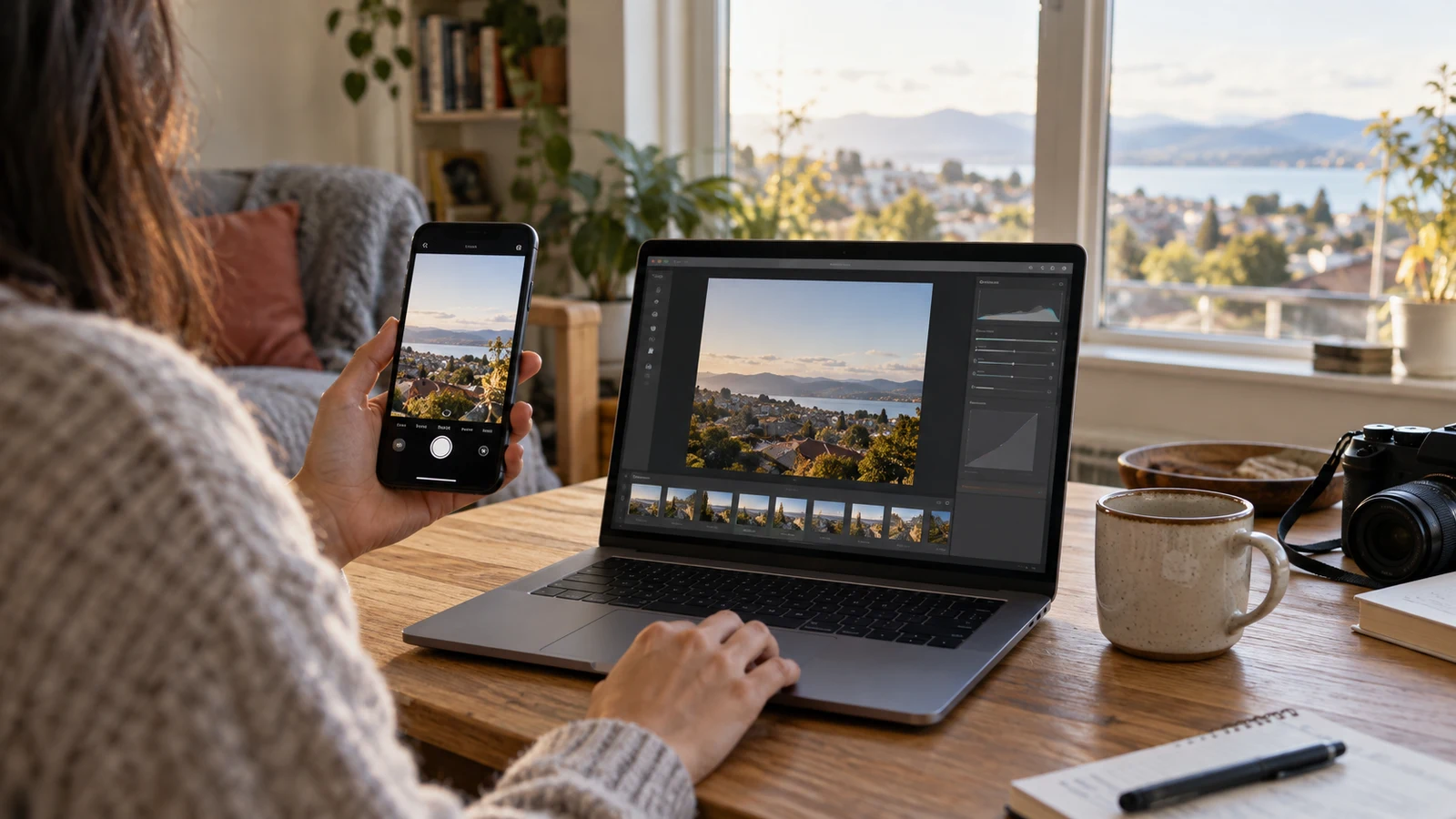
Quick answer: should you use RAW?
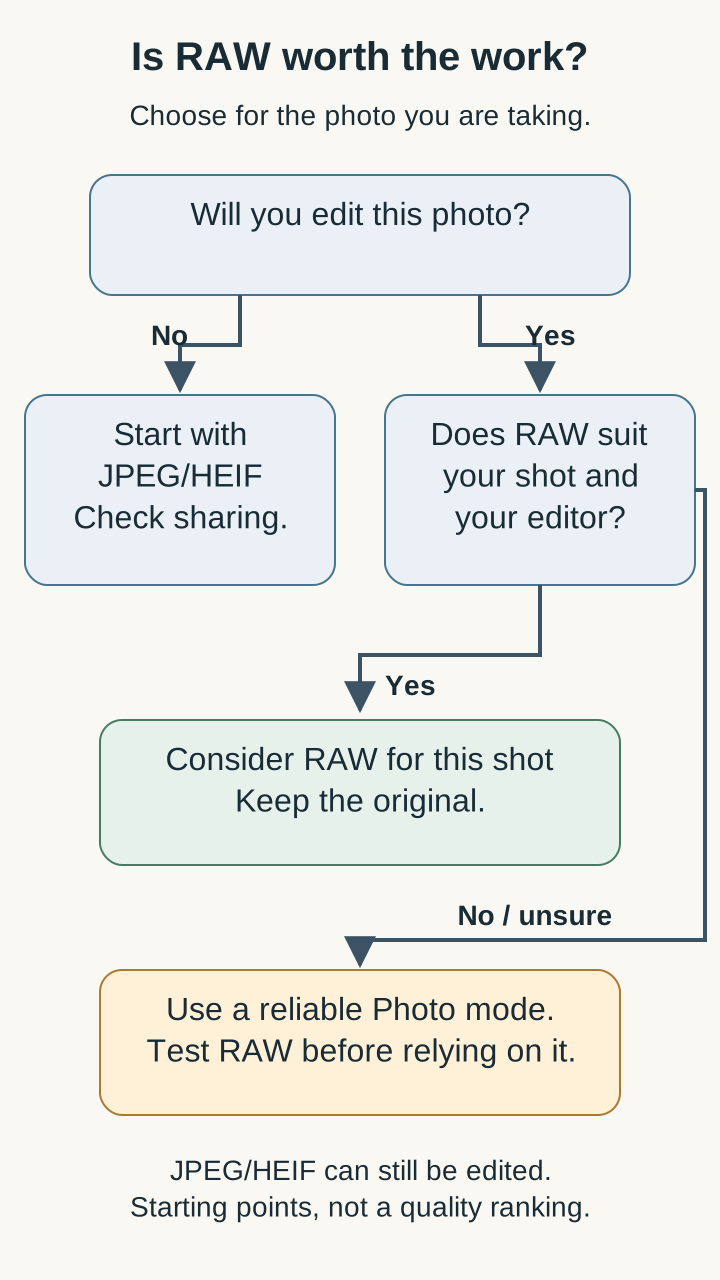
Use RAW for selected photographs when you intend to edit them and the extra control is worth the storage and work. Start with JPEG/HEIF for everyday pictures, quick sharing and trips where you would rather enjoy the scene than develop every image afterward.
A landscape you want to print, an interior with difficult light or an important portrait may justify RAW. A fleeting expression calls for a capture mode you trust, whatever format it saves.
RAW offers editing possibilities, not a promise that the photograph will look better. JPEG and HEIF remain useful for editing too. The practical question is whether your intended adjustment needs more room than the normal photo provides.
This is a research-based guide using manufacturer and editing-software documentation. FlawCheck has not conducted a matched phone-camera test. The recommendations below are starting points; availability and behavior depend on your phone, camera, app and software.
The downside first: storage and another job to finish
The cost: keep a larger source, finish the edit and check a separate delivery copy. Reserve RAW for photographs that justify the work.
Choosing RAW can turn a quick photograph into a small editing project. You need somewhere to keep the source, an editor that handles it properly and a delivery copy that works where you share pictures. That may be worthwhile for a few favorites. It becomes less appealing when you return from a holiday with hundreds of files you never want to open again.
The costs are easiest to judge in your own workflow. Look at actual file sizes, count the pictures you expect to keep and consider backups as well as phone storage. Exported copies take space too.
For scale, Apple’s April 2024 ProRAW support page estimates approximately 25 MB for a 12MP ProRAW image and 75 MB at 48MP. Those are historical manufacturer examples, not our measurements or general RAW sizes.
Also separate the image you see from the data you save. Apple’s ProRAW developer explanation describes embedded previews and a default rendering. A RAW file need not look dull when first opened, and its preview does not tell you exactly how far you can push an edit.
What RAW, JPEG and HEIF mean on a phone
A processed JPEG or HEIF is a photograph with a rendering already applied. A RAW workflow leaves more development choices available to a compatible editor. Adobe’s RAW-versus-JPEG guide explains how the retained information can support exposure and color adjustments.
However, phone RAW covers different capture paths. Conventional Bayer RAW and computational RAW should not be treated as interchangeable. The latter can incorporate image processing while retaining an editable representation.
HEIF is an image file format used in Apple’s High Efficiency capture workflow; you will encounter HEIC files in that ecosystem. Apple’s HEIF guidance describes storage efficiency and compatibility choices. Choose the processed format your devices and delivery route handle comfortably; a file extension alone is a poor quality verdict.
RAW vs JPEG/HEIF: the practical differences
| What matters | Conventional/Bayer RAW | Computational RAW | JPEG/HEIF |
|---|---|---|---|
| Main reason to choose it | More development control | Editing latitude with a computational capture path | A rendered photo for routine use |
| First appearance | Depends on the rendering/editor | May include a tuned default look | Already rendered for viewing |
| Editing | More choices may remain available | Latitude depends on the specific pipeline | Still editable; existing rendering matters |
| Storage | Check the actual files | Can require substantial space | Often the practical everyday choice |
| Delivery | Export a compatible copy when needed | Check editor and export support | Check compatibility and the received file |
| Capture behavior | Check the selected mode | Check the selected mode | Use a mode that reliably captures the moment |
These are workflow differences, not an image-quality ranking. ProRAW and Expert RAW are examples of computational RAW, not identical implementations.
Do not make resolution stand in for format. A 48MP RAW versus 12MP JPEG comparison changes both. Our 12MP vs 48MP photo-mode guide covers that separate decision.
Why ProRAW and Expert RAW need separate treatment
Apple describes ProRAW as combining RAW-format information with iPhone image processing. Its documented workflow can work with Smart HDR, Deep Fusion and Night mode. Selecting it is not a master switch that turns computation off.
That support page covers iPhone 12 Pro and later Pro models with iOS 14.3 or later. ProRAW is unavailable with Live Photos, Portrait mode or video; check the supported camera and resolution separately. Apple’s Photos app can edit ProRAW on a supported iPhone and share the edited picture as a JPEG, giving you a starting workflow without a separate editor.
Samsung’s S22-era Expert RAW explanation describes a multi-frame pipeline and JPEG/DNG output. That explains the processing character of the documented app; it does not establish current save settings for every Galaxy. Treat Expert RAW separately from RAW offered by a phone’s stock Pro mode.
The practical lesson: check which RAW path your app uses. A DNG extension does not establish whether the file came from one sensor frame or computational processing.
This matters if you dislike harsh texture or heavy tone changes. More editing control may help you choose a different look, but RAW cannot be assumed to reverse everything already done during capture. Our overprocessed iPhone photos guide addresses that rendering problem in more detail.
When RAW is worth it
RAW earns its place when you can name the edit you want to make. Perhaps the room needs careful color work, the portrait needs restrained tone adjustments or the landscape deserves a deliberate finished look. That is a stronger reason than selecting the largest-looking format simply because it is available.
For an interior, consider what matters: readable detail outside the window, the atmosphere inside or both. RAW may give you useful room to adjust the result, but it cannot promise every bright area was recorded. Review important details before leaving a scene you cannot revisit.
For a portrait, an editable source may be valuable when the photograph matters enough to work on skin color and contrast. Focus and movement still come first. Ask a cooperative subject to pause, then check the face rather than assuming the file format made the shot safe.
When is RAW worth the extra work?
| Situation | Starting choice | What to check |
|---|---|---|
| Static landscape or interior you will edit | Consider RAW | Editor support, retained detail and storage |
| Important portrait in difficult light | Consider RAW if capture suits the subject | Focus, movement and mixed lighting |
| Everyday pictures with little editing | JPEG/HEIF | Whether the normal file already meets your needs |
| Children, pets or fleeting expressions | Your reliable Photo workflow | Actual responsiveness and the captured moment |
| Dim, mostly static scene | Compare supported Photo/Night and RAW workflows | Whether the RAW path changes the computation |
| Immediate sharing or many travel photos | JPEG/HEIF; RAW for selected favorites | Delivery compatibility and editing workload |
| You dislike the default rendering | Compare an editable RAW path | Whether its controls solve your particular complaint |
Editorial starting points, not measured wins for a particular phone.
When JPEG/HEIF is the better choice
If the normal photo already looks right and your edits are small, keeping an extra RAW original may add little value. A crop, a modest brightness adjustment or a slightly warmer rendition does not automatically require RAW.
JPEG/HEIF is also a sensible starting point when delivery matters immediately. Consider a trip where most pictures are messages to family and only a few are intended for careful editing. Reserve RAW for those selected photographs instead of building an editing backlog for the entire trip.
For children and pets, judge the moment you captured. Try the relevant modes in a repeatable situation before using an unfamiliar workflow for an important event. We have no matched timing evidence that supports a universal RAW delay, burst limit or action success rate.
Low light needs the same care. Google’s historical Night Sight research explains how motion, exposure and multi-frame capture interact. It does not rank every current RAW mode against every processed photo mode. Keep the format decision separate from the capture strategy.
For the wider relationship between optics, exposure and processing, start with our phone camera specifications guide.
What RAW can—and cannot—recover
Think of RAW latitude as room to reinterpret information the file retained. A bright patch that looks white in one rendering may still contain useful detail. If the relevant information is absent, an exposure slider cannot be promised to bring it back.
Shadows have a similar limit: making an area brighter is not the same as making it clean. Stop when the result meets your needs rather than treating the maximum slider setting as a test RAW must pass.
Color work can be more flexible, but it is not effortless. Adobe Camera Raw documentation distinguishes RAW white-balance adjustments from JPEG/TIFF adjustments to already altered pixels. That is an editor-specific explanation, not a claim that every app uses identical controls.
If a face is lit by a warm lamp on one side and daylight on the other, one global adjustment may leave an unwanted cast somewhere else. Treat selective editing or simpler lighting as options. Our white-balance guide covers that problem separately.
What RAW cannot promise to fix
| Problem | Possible help | Limit and next step |
|---|---|---|
| White-looking highlights | Adjust exposure/rendering | Recovery requires retained data; consider recapturing with lower exposure |
| Dark, noisy shadows | Adjust tone and noise reduction | Brighter does not guarantee clean detail; improve the light if possible |
| Subject motion blur | Improve color or tone | Ordinary RAW editing is not a guaranteed blur cure; change capture conditions |
| Focus on the background | Change the rendering | Sharpening cannot be promised to restore missing subject detail; refocus |
| Mixed light casts | Global or local color edits | One global WB change may not suit every region |
| Altered texture | Different development choices | Computational capture changes may not be fully reversible |
| Different appearance after sharing | Another export/viewer | Check the delivered file and HDR support |
Improving an image’s appearance and recovering original detail are different tasks. These limits do not claim that every enhancement tool is ineffective.
A simple capture-to-sharing workflow
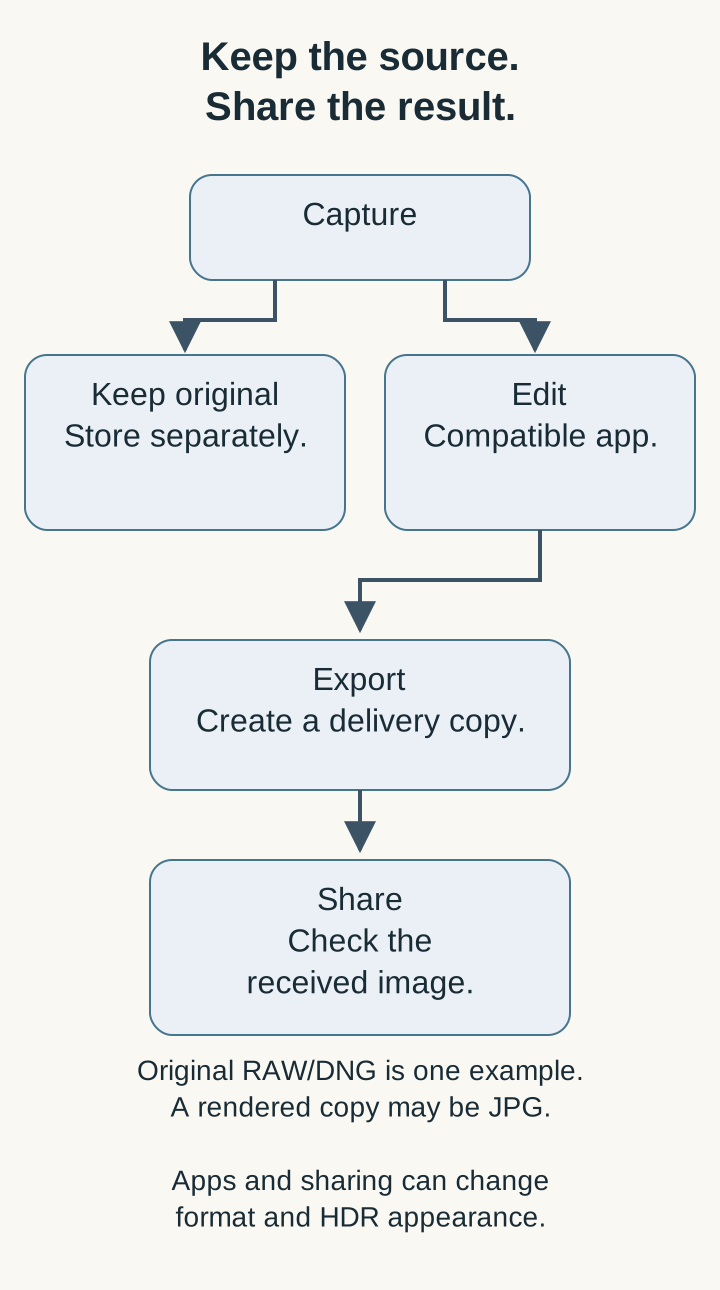
Before an important outing, test the complete route with a few pictures. Capture a supported RAW file, open it in your chosen editor and send an exported copy through the service you normally use. Confirm that the route fits your time and storage budget.
- Keep the original. Preserve the source separately from the delivery copy so you can return to it later.
- Edit in a compatible app. Adjust exposure, color and tone for your intended result. Support for the particular RAW interpretation matters, especially with computational formats.
- Export a delivery copy. In Lightroom mobile, the documented route is Share → Export as. Choose a rendered format such as JPG when that is what the destination needs. Original-file export serves a different purpose.
- Check what arrived. Open the delivered image and inspect its appearance and dimensions rather than judging only the editor preview.
One last distinction: HDR capture, an editable RAW source and HDR display are separate. Apple’s Adaptive HDR explanation describes HDR workflows in both HEIF and JPEG; Adobe’s mobile HDR export documentation also describes JPEG gain maps. Do not label every JPEG SDR or every HEIF HDR, and do not infer bit depth from the extension.
If brightness changes between apps, check export and viewing support before blaming the original capture. Our phone HDR guide explains those differences.
For a fair comparison, keep camera, framing and actual output resolution consistent. Disclose the RAW edits and editing time, compare equal-size results in the same viewer and repeat the scene. If the modes use different capture pipelines, describe a comparison of complete modes rather than isolating the storage format.
Verdict
Keep JPEG/HEIF as a practical everyday starting point. Consider RAW for photographs you want to develop deliberately, when the capture mode, editor and storage budget fit.
The deciding question is simple: what will you do with the extra editing room? If you have a clear answer, RAW may be worthwhile. If the file will sit untouched while you share a normal-looking preview, a processed photograph may already do the job.
Sources and limitations
Primary sources are linked beside the relevant explanations. Historical Apple, Samsung and Google implementations illustrate documented mechanisms; they do not establish identical behavior on every current phone. Practical recommendations are editorial judgments, not measured fixes. No camera score, quality ranking or matched format test is claimed.