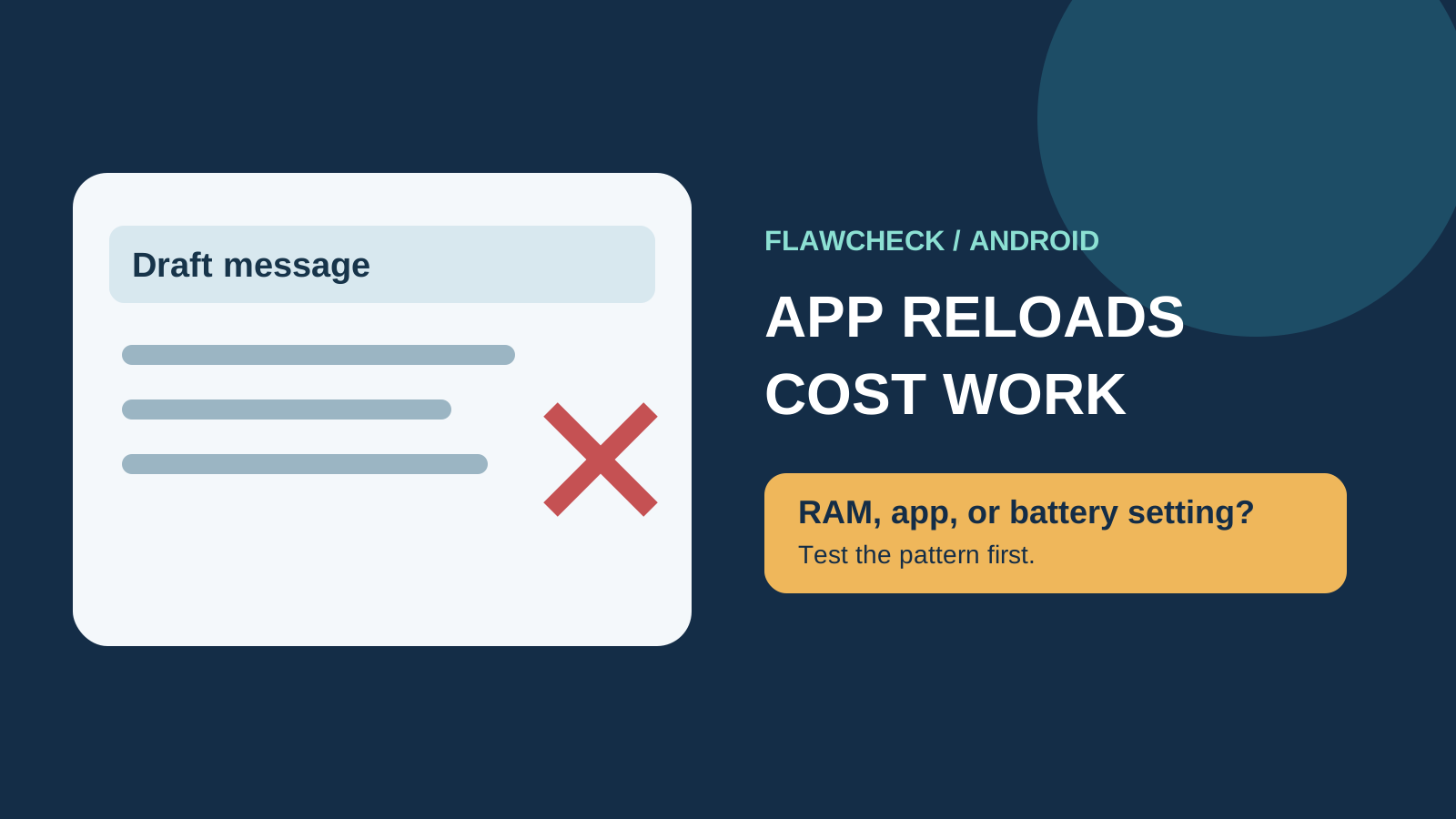
A form starts over after you leave it to copy a code. A game reloads after you answer a message. The lost work is real, but the explanation is not always “too little RAM.” Paying for a new phone or turning off every battery safeguard before identifying the cause can create a second problem without fixing the first.
Decision in 30 seconds
Several apps restart after a heavy task? Test for memory pressure.
Only one app restarts? Check that app’s settings, version and saved-state behavior.
The app stays open but notifications arrive late? Check background activity instead.
Change one setting at a time and repeat the same test. More background freedom can use more battery.
What does “reloading” actually mean?
| Symptom | Possible explanation | First check |
|---|---|---|
| The opening screen returns and unsaved work disappears | Its process may have ended, or the app failed to restore state | Does this happen to one app or several? |
| A feed refreshes, but the app remains in place | The app may be fetching content again | Did the screen or unfinished work disappear? |
| The app opens normally, but messages or updates arrive late | Background activity may be restricted | Check that app’s battery and notification settings |
Android may remove cached app processes to reclaim memory. What you see when you return also depends on how the app saves and restores state. A restart is therefore not a direct measure of available RAM. Android Developers: memory overview; activity lifecycle.
Delayed notifications are a separate branch. Android’s Doze and App Standby can defer background work while the device is idle. Samsung says deep sleeping apps become inactive in the background and cannot perform activities such as notifications or updates. That does not establish why an app reopened from its first screen during a quick switch. Android Developers: Doze and App Standby; Samsung Application Management.
Follow the symptom
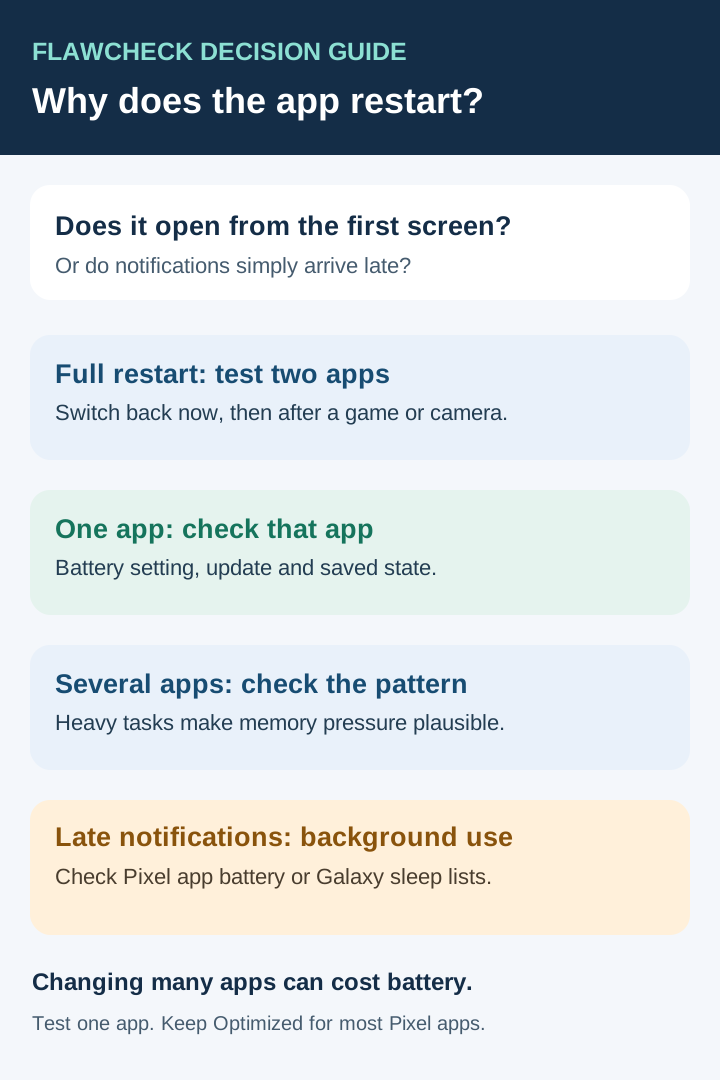
Use the same app sequence before and after any setting change. A different workload cannot establish that the setting helped.
Run a two-app test before changing anything
Choose the affected app and a second ordinary app. Open a recognizable screen in each, then:
- Switch between them and return immediately.
- Repeat after a few minutes with the screen on.
- Repeat after opening a demanding game or camera session.
- Record whether Power saving is on and whether the issue began after an app or system update.
If several apps restart more often after a demanding task, memory pressure becomes more plausible. Android ranks processes by importance and can remove cached ones when it needs resources. The exact result depends on the phone, workload and software. Android Developers: processes and app lifecycle.
If one app repeatedly restarts even after a quick switch, investigate that app first. If apps keep their screen but updates arrive late, use the background activity checks below.
A repeatable test you can actually compare
Use the same two apps, screens and timing in both runs. For example, write a few words in a notes draft, open a browser page, return to the draft after 10 seconds, then repeat after two minutes. Next, repeat the sequence after launching your usual game or camera. Save important work before testing: the point is to observe the behavior, not to risk losing a real draft.
| Result | What it suggests | What it does not prove |
|---|---|---|
| One app loses its screen immediately; the other does not | Examine that app’s version, battery setting and saved-state behavior | That the phone’s RAM capacity is inadequate |
| Several apps lose their screen mostly after opening a game or camera | Memory pressure deserves investigation | That buying any higher-RAM phone will solve it |
| Screens stay in place; alerts arrive only after opening apps | Inspect background battery, sleep and notification settings | That cached app processes were killed |
| The issue appeared immediately after an update | Test the same sequence and record the version for a report | That every phone on the update is affected |
Run each comparison more than once. Network content can refresh without an app process ending, while an app can start a new screen because it did not preserve its state. A single switch is too little evidence to distinguish them. If you can record a screen capture without exposing private information, it may help the app developer reproduce the exact point of failure.
Check battery settings for the affected app
Record the current setting. Change one app at a time, repeat the same switching or notification test and check whether battery life changes. A setting that permits more background work can cost battery; it does not promise that the app will always remain in memory.
Google Pixel
Google’s help path is Settings → Apps → See all apps → choose the app → App battery usage → Allow background usage. Check whether the affected app may run in the background and which battery option it uses. Google recommends keeping Optimized for apps generally. Do not switch all apps to Unrestricted as a generic “RAM fix.” Menu names may vary by Android version. Google Pixel Help: Adaptive Battery and optimization.
This check is especially relevant when a needed background task or notification arrives late. If a screen restarts immediately on switching back, compare the result with your two-app test instead of assuming the battery option was the sole cause.
Samsung Galaxy
Open Settings → Battery → Background usage limits, or Settings → Battery and device care → Battery → Background usage limits on versions with the longer path. Search Settings for Background usage limits if the menu differs. Check whether the affected app appears in Sleeping apps or Deep sleeping apps. Samsung says deep sleeping apps only become active when opened and do not carry out background updates or notifications while inactive. Samsung Support: sleeping apps; Samsung Application Management.
If timely background activity matters, remove that specific app from the sleep list and retest. The Never sleeping apps option can allow more background activity and may increase battery use. It is not a guarantee that the app will preserve every screen or unfinished form.
Avoid the blanket fix: Disabling battery optimization for every app can increase background activity without proving what caused your reloads. Make one reversible change to the affected app and compare the same test.
Two settings that can confuse the diagnosis
Power saving mode: note whether it is enabled when the problem appears. For a controlled comparison, repeat the same short test once with your normal mode and once with Power saving off. Do not change multiple battery options at the same time; a difference is a clue for further investigation, not proof of which internal policy ended the app.
Developer options: if you previously changed Android’s Don’t keep activities setting, check whether it is enabled. Android documents that this option destroys an activity when you leave its main view; it is intended for development testing and can make ordinary switching feel broken. Return it to your prior/default setting if it was enabled unintentionally. There is no reason to activate Developer options merely to troubleshoot a normal phone. Android Developers: configure on-device developer options.
Our RAM cleaner guide explains why a higher “free RAM” number after cleaning does not establish better app switching. On Galaxy phones, Device care → Memory → Clean now explicitly closes background apps. Samsung also describes an Excluded apps list for apps you want left out of that cleaning action. If reloads follow a manual clean, stop using it during the comparison. This memory-cleaning control is separate from Battery → Background usage limits, which concerns app sleep and background work. Samsung Support: Device care. If the concern is unexpected drain rather than lost app state, check what background work is using battery before restricting the app.
When should you suspect insufficient RAM?
The more useful clue is a repeatable pattern across several apps under a heavy workload: a game, editing session or camera workflow interrupts other apps, and returning to them requires a full restart. Android’s memory management can remove cached processes under pressure, but a “free RAM” screenshot alone does not diagnose the experience. Android Developers: memory allocation.
If you are choosing a replacement phone, our 6GB, 8GB and 12GB Android RAM buying guide covers the capacity and price trade-off. Do not add an advertised RAM expansion number to physical RAM; the Virtual RAM and RAM Plus guide explains what that setting may and may not change.
A slow phone is not automatically a memory-limited phone. If a game stays open but frame rates fall after several minutes, compare the symptom with phone thermal throttling. If apps struggle to install or the camera cannot save files, inspect free storage headroom. Those are distinct tests, and one phone can have more than one constraint.
If an app crashes rather than merely reloading
A visible “app keeps stopping” message, a freeze followed by the home screen, or a failure that happens inside the app while you are using it calls for app troubleshooting. Android distinguishes a low-memory process exit from a crash in its developer diagnostics; the two can look similar when you reopen the app, but a reader cannot reliably infer the exit reason from the opening screen alone. Android Developers: ApplicationExitInfo.
For one misbehaving app, Google’s Pixel guidance starts with checking the app and system for updates and restarting between steps. Clearing cache may help some app problems, but clearing storage/data or reinstalling can remove local app information. Back up anything important and understand the app’s sync behavior before taking a destructive step. If the app relies on online content, also test whether a connection problem is simply triggering a page refresh. Google Pixel Help: fix an installed app.
If the same app fails at the same point after those checks, contact its developer with the exact steps, app version and device details. If several unrelated apps crash while you are actively using them, the issue needs broader device diagnosis; do not label every failure a background-RAM problem.
If only one app keeps losing your place
Check whether the issue began after that app or Android updated. Install an available app update, restart the phone and repeat the short switching sequence. If the change followed a major system release, record the version and compare the staged-rollout checks in our major Android update guide. If other apps retain their screens while this one repeatedly discards a draft or form, report the app version, phone model, Android version and reproducible steps to its developer.
An Android app is responsible for handling lifecycle changes and restoring appropriate state. A phone-wide memory or battery change cannot guarantee recovery of work the app did not save. Android Developers: activity lifecycle.
Common fixes that deserve skepticism
- “Clear RAM every hour.” Closing background apps removes the state you hoped to keep. On Galaxy, Samsung says Device care’s memory clean closes background apps. Use the action for a specific issue, not as a routine way to prevent reloads. Samsung Support: Device care.
- “Set every app to Unrestricted.” Google recommends Optimized for apps generally. Test a more permissive setting only for a specific app with a repeatable background problem, and then consider its battery cost. Google Pixel Help.
- “Add the maximum Virtual RAM.” That feature is not additional physical RAM; whether it reduces reloads depends on the device and workload. Compare the same sequence before and after, as explained in our Virtual RAM guide.
- “Buy a 12GB phone because one app resets.” One app may fail to restore a draft even after the system recreates it. First establish whether other apps suffer the same interruption.
Bottom line
Best fit for a settings change: a specific app’s notifications or background work are delayed, and a one-app change fixes that repeatable problem without an unacceptable battery cost.
Warning sign for memory pressure: several apps lose their place after the same demanding multitasking sequence. Seek a device-specific app-retention test before paying for more RAM.
Avoid assuming: one app reopening means the phone has too little RAM. First establish whether the issue is a full restart, a content refresh or delayed background work, then follow the matching branch.