Should You Install a Major Android Update Immediately? 7 Risks to Check
One UI 9 is now rolling out beyond Samsung’s newest foldables. Check device eligibility, AI limits, battery, apps, privacy and rollback risks before updating.
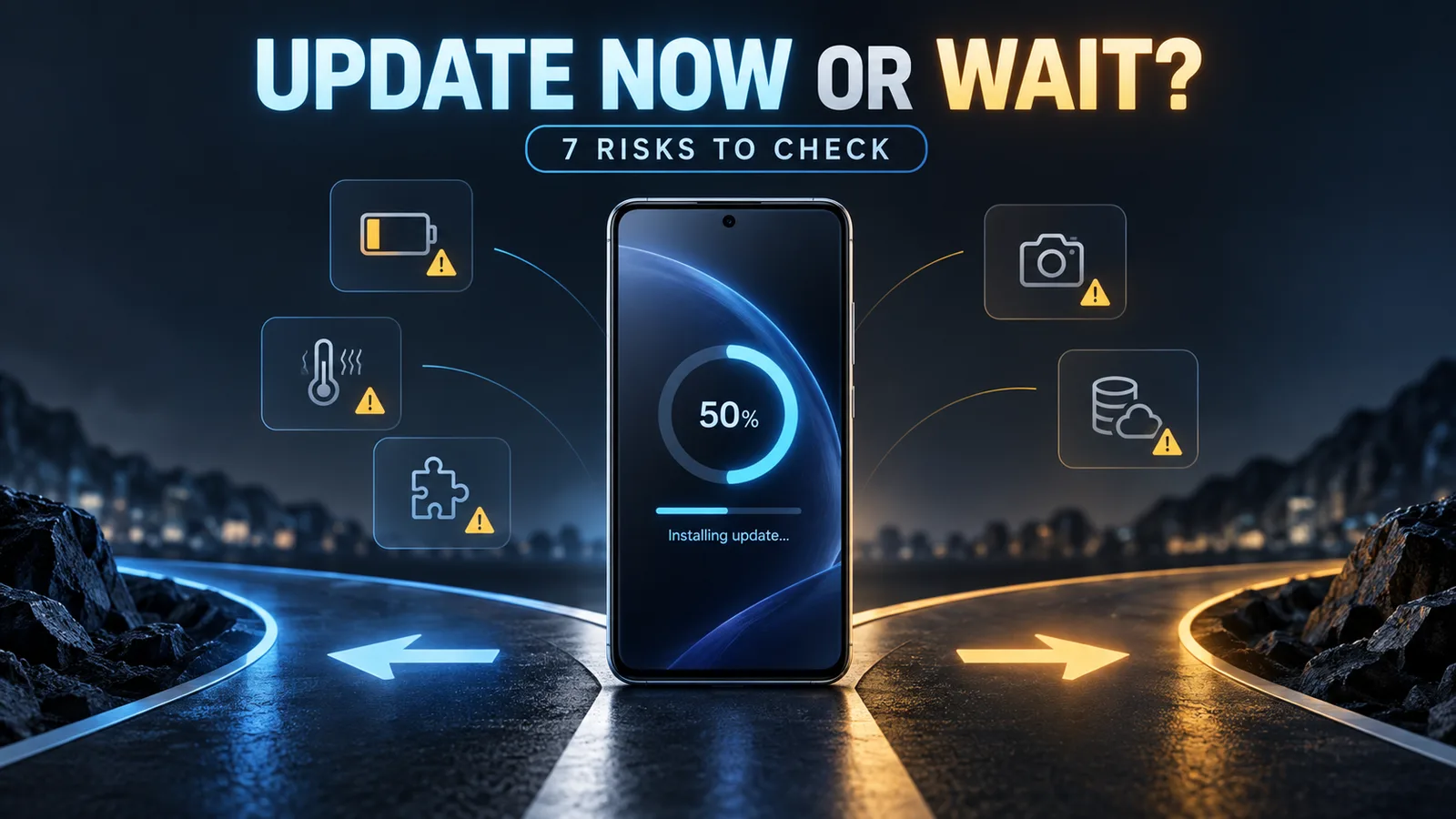
Decision in 30 seconds
What matters most
- ✓ Samsung began expanding stable One UI 9 to the Galaxy S26 series on September 16, after its debut on the Fold8 family; availability for other devices remains phased and market-specific.
- ✓ Waiting 7–14 days is sensible when the phone is your only work, banking, travel or accessibility device; it is not a rule to postpone critical security fixes.
- ✓ Short-lived battery drain or warmth can follow indexing and app optimization, but persistent degradation after several normal charge cycles should be measured rather than dismissed.
- ✓ Check the exact phone model, country, carrier and critical apps because Android rollouts and defects are rarely uniform across every device.
- ✓ Back up locally important data and verify the backup before updating; a successful cloud sync does not guarantee that every app session, authenticator or offline file can be restored.
How we selected
- Whether the update is a major OS release, a maintenance update or an urgent security fix
- Dependence on banking, authentication, Android Auto, wearables, VPN, accessibility or enterprise-management apps
- Model-, country- and carrier-specific owner reports rather than complaints about unrelated devices
- Availability of a verified backup, a spare device and time to troubleshoot
- Measured battery, temperature, camera and connectivity behavior before and after installation
Bottom line
Most people do not need to install a major Android version on day one. If your phone is essential for work, payments, travel or accessibility, wait 7–14 days for model-specific owner reports and the first corrective patch. Update sooner when the release closes an actively exploited security vulnerability or fixes a problem you already have.
A major Android update can improve security, extend the useful life of a phone and add features without requiring new hardware. It can also change the parts of a phone you depend on most: battery behavior, background apps, camera processing, wireless connections and permission rules.
That makes “update immediately” versus “never update” the wrong argument. The useful question is:
Does the benefit of installing this release today outweigh the cost of discovering a device-specific problem before everyone else?
For most owners, the answer depends less on enthusiasm for new features than on how costly a temporary failure would be. A secondary phone can be updated early with little consequence. The only phone used for banking, authentication, navigation and work deserves a more cautious plan.
This guide uses Samsung One UI 9 as the current case study, but the decision framework applies to future One UI releases and major Android upgrades from other manufacturers.
The short answer
If your phone is stable and essential, wait 7–14 days after the update reaches your exact model and region. During that period, look for consistent reports involving the same model, chipset, carrier and firmware—not isolated complaints about a different Galaxy phone.
Install sooner when:
- the update fixes a critical or actively exploited vulnerability;
- it resolves a serious fault you already experience;
- your critical apps and accessories have confirmed compatibility;
- you have a verified backup and another way to authenticate or communicate;
- and you are comfortable diagnosing a problem.
Wait when:
- the phone is required for work, payments, travel or accessibility;
- you rely on a managed work profile, VPN, authenticator, Android Auto or specialist accessory;
- early reports identify a repeatable fault on your exact variant;
- or you are about to travel, meet a deadline or attend an event.
The 7–14 day recommendation is a risk-management window, not a guarantee that every defect will be fixed. It is also not a reason to ignore security updates indefinitely.
One UI 9: what Samsung has officially confirmed
Samsung announced the official expansion of stable One UI 9 on September 16, 2026, beginning with the Galaxy S26, S26+ and S26 Ultra. The release had already debuted on the Galaxy Z Fold8 Ultra, Z Fold8 and Z Flip8. Samsung says the update will reach additional eligible Galaxy phones and tablets gradually rather than on one worldwide date. Samsung’s official One UI 9 rollout announcement
That changes the status of this guide’s case study: One UI 9 is no longer only preinstalled software or a beta program. It is a stable production update for the models and markets where Samsung has released it. It does not mean every Galaxy device mentioned in a beta program has received the stable OTA.
Keep these situations separate:
- Preinstalled stable software: the Fold8 family launched with One UI 9.
- Stable rollout: Samsung began expanding the production release to the S26 series on September 16.
- Beta access: some older models may still be on beta software in selected markets.
- Eligible but waiting: support eligibility does not establish the date for a particular country, carrier or model number.
Samsung’s regional announcements illustrate the problem with treating one date as universal. The global release names September 16, Singapore’s notice says the S26 rollout begins September 21, and Australia’s notice points to the end of September. Check Settings → Software update and Samsung Members for your exact device rather than relying on a schedule copied from another market.
The confirmed One UI 9 features—and their catches
| Confirmed feature | What it does | Limitation to check first |
|---|---|---|
| My FanCam | Tracks a selected person and reframes recorded video | Requires a Samsung Account; subject detection and result accuracy are not guaranteed |
| Editable Now Brief cards | Lets users tailor daily cards for health, weather and video | Availability varies by model, app, language and region; some functions need a network connection |
| Warranty and Care | Shows coverage, diagnostics, repair estimates and service options in Settings | Repair estimates, Samsung Care+ and booking options vary by market and model |
| Now Nudge | Suggests actions such as saving locations or calendar details from conversations | Requires supported apps and an account; availability and accuracy vary |
| Interpreter Thread View | Keeps earlier translated exchanges visible and improves conversation flow | Language packs, Galaxy Buds support and service availability differ |
| Improved Document Scan and Voice Recorder | Handles difficult pages and presents structured summaries | Output quality depends on the document, capture conditions, model and language |
| Security Brief and Privacy Alerts | Surfaces malware, permission and background-access concerns | Privacy Alerts support only a stated subset of Galaxy phones and tablets and may miss relevant factors |
| Expanded Scam Detection | Extends supported languages and markets | Samsung specifically names Japan, Canada and India in this rollout; availability is not universal |
The downside is not that these features are inherently unsafe. It is that the headline “One UI 9 feature list” is broader than the feature set any one owner is guaranteed to receive. Account requirements, cloud connectivity, language support, app compatibility and device eligibility can remove or change parts of the experience.
This distinction matters for our Galaxy S26 FE downside review. Long software support improves ownership value, but it does not guarantee identical rollout timing or feature parity. Our Samsung Galaxy buying guide explains how update support should be weighed against RAM, storage, battery and repairability.
The Galaxy Book6 14 review covers a different device category: the laptop does not receive One UI 9. Owners who pair it with a Galaxy phone should still recheck Quick Share, Link to Windows, Storage Share and Multi Control after updating because those connected workflows depend on compatible apps and services.
Risk 1: battery drain may be temporary—or may reveal a real problem
Major updates trigger work that ordinary monthly patches may not. Applications can recompile or optimize, media libraries can re-index, cloud accounts can resynchronize and new services can request setup. That work can temporarily increase CPU, storage, network and battery activity.
The mistake is turning that explanation into “all post-update drain is normal.” It is not. A defective system service, incompatible app, poor modem behavior or changed background policy can create persistent drain.
Measure before blaming the update:
- Record typical screen-on time, overnight idle loss and the applications you normally use before installing.
- After updating, allow initial setup and synchronization to finish on Wi-Fi and power.
- Compare several normal charge cycles—not one unusually heavy day.
- Keep brightness, signal conditions, refresh rate and workload reasonably similar.
- Inspect per-app and system battery usage for a repeatable outlier.
Do not jump directly to a factory reset. Resetting destroys useful evidence, creates more synchronization work and may not fix a firmware defect. First update affected apps, restart once, test without optional accessories and document the firmware build. Reset only after a verified backup and when a credible troubleshooting path supports it.
Risk 2: heat and performance changes can be workload-specific
A phone feeling warm immediately after installation is not proof of permanent thermal regression. Setup tasks and app updates can load the processor, storage and modem simultaneously. Conversely, a phone that feels fine on the home screen may throttle during navigation, gaming, video recording or a weak-signal upload.
Major releases can change:
- process scheduling and background limits;
- graphics drivers and game optimization;
- modem firmware and radio behavior;
- thermal targets and charging control;
- and the memory pressure created by new system features.
Test the workload that matters. If you use the phone for long video calls, run the same call duration. If you navigate while charging, reproduce that combination safely. If you play games, compare a sustained session rather than the opening menu.
Owners of value-oriented models should pay particular attention to memory headroom. Our Samsung Galaxy buying guide explains why long support and adequate hardware capacity must be considered together; a long update promise does not remove RAM, storage or thermal limits.
Major firmware releases can also retune compressed memory or vendor expansion features. If app retention changes after an update, use the controlled A/B method in our Virtual RAM and RAM Plus guide instead of assuming the largest displayed allocation must be fastest.
Risk 3: one critical app can outweigh every new feature
Most popular applications will work after a major Android release. “Most” is not enough when one failure prevents access to money, work or identity.
Check these categories before updating:
| Dependency | What can break | What to verify |
|---|---|---|
| Banking and payment | Login, biometric approval, device integrity check | Latest app version and provider notice |
| Authenticator or passkey | Account access and device-bound credentials | Recovery codes and a second trusted method |
| Work profile or MDM | Enrollment, VPN, certificates, copy/paste policy | Employer or administrator approval |
| Accessibility service | Background operation, overlay or permission access | Developer compatibility and an alternative path |
| Launcher or automation | Default-app behavior, gestures and background triggers | Stable release tested on the new Android version |
| Offline media or specialist app | Storage access, codec or license validation | Backup/export and a repeatable test |
Android 17 includes behavior changes that can affect applications, and Google tells developers to test their apps against the new platform. That does not prove your app will fail; it is the reason “Android still runs Android apps” is not a sufficient compatibility check. Android 17 developer overview
Risk 4: accessories depend on more than Bluetooth pairing
An accessory can remain paired while losing the feature you bought it for. Major updates may affect Bluetooth profiles, USB behavior, Android Auto, wearable plugins, hearing-device integrations, game controllers, camera accessories and desktop modes.
Before installing, list the accessories that would be costly to lose for a week. Then verify:
- the accessory’s companion app has been updated recently;
- the manufacturer explicitly supports the new OS where relevant;
- other owners have tested the same phone and accessory combination;
- firmware updates are available for the accessory;
- and you know how to re-pair it without erasing valuable settings.
Avoid using “Bluetooth works for me” as evidence for every accessory. Audio playback, call microphones, notification mirroring and health-data synchronization can use different services and fail independently.
Risk 5: camera hardware can stay the same while image quality changes
Phone photography is a pipeline, not just a sensor. A major update can alter exposure selection, autofocus, noise reduction, sharpening, HDR merging, skin tones, motion processing and the handoff between camera modules.
An update may improve one scene and worsen another. More aggressive noise reduction can produce cleaner night skies but smear moving subjects. Stronger HDR can preserve windows while making faces look flatter. A faster shutter can reduce blur while raising noise.
If the camera matters, capture a small baseline set before updating:
- a moving person indoors;
- a face against a bright window;
- a night scene with point lights;
- a close subject near the minimum focus distance;
- and video with stabilization and audio.
Repeat the scenes with the same lens and settings. Compare full-resolution files, not just a social-media upload. This separates a real processing change from memory, lighting or expectation.
Risk 6: new AI features can change permissions, data paths and availability
An “AI feature” label does not tell you where processing occurs, which account is required or whether the function is available in your language and region.
Before enabling a new tool, ask:
- Is processing on-device, cloud-based or a mixture?
- Which text, image, voice or screen content leaves the device?
- Is a Samsung, Google or third-party account required?
- Can the data be retained or reviewed by a service provider?
- Does the feature work offline?
- Is it available on this model, language and country?
- Can it be disabled without losing a core phone function?
Samsung itself notes that One UI features and availability can vary by country, model, carrier and language. Treat a feature shown in a launch demonstration as a possibility until the exact eligibility and terms for your device are documented.
Review permissions after the update, especially for new system components. Do not assume every default is malicious, but do not grant microphone, photo, notification or accessibility access merely to clear a setup prompt.
Risk 7: downgrading may be harder than updating
An update can arrive through one tap. Returning to the previous version may require a computer, exact firmware files, a data wipe or service-center support—and may not be allowed at all.
Android’s security model includes rollback protection intended to prevent a device from booting older, vulnerable software. Manufacturers can also advance bootloader or firmware revisions that block older packages. The practical result is simple: never install a major update on the assumption that you can easily undo it.
A cloud backup is not a full disk image. Some app sessions, secure folders, authenticators, work profiles, eSIM details, downloaded media and device settings may require separate recovery steps. A downgrade or factory reset can also demand current passwords and two-factor authentication when the phone itself was the second factor.
Before updating:
- open the backup destination and confirm recent files exist;
- export recovery codes and store them away from the phone;
- verify password-manager access from another trusted device;
- confirm important chats and app data use a supported backup method;
- record work-profile or VPN enrollment instructions;
- and keep sufficient battery, storage and uninterrupted time for installation.
Security patches are the important exception
Waiting reduces exposure to early stability problems but extends exposure to known vulnerabilities. The balance changes when a release addresses a critical issue, especially one reported as actively exploited.
Do not classify updates only by download size. A manufacturer may bundle a security patch with a feature release. Read the security bulletin and release notes, then ask:
- Is the vulnerability relevant to my device and patch level?
- Is exploitation known in the wild?
- Can I install the security fix without taking the major feature release?
- Is the update mandatory under my employer’s device policy?
When credible evidence says a vulnerability is being exploited, install promptly after completing the backup and compatibility checks you can reasonably perform. Perfect stability is not the only form of safety.
A practical decision table
| Your situation | Recommended timing | Why |
|---|---|---|
| Secondary phone, enthusiast user, verified backup | Day one is reasonable | Failure cost is low and early testing is acceptable |
| Stable primary phone with no urgent fix needed | Wait 7–14 days | Model-specific faults and fixes have time to emerge |
| Work, banking, travel or accessibility-critical phone | Wait for exact compatibility evidence | One broken dependency has high impact |
| Confirmed critical or exploited security issue | Update promptly | Security exposure may outweigh early stability risk |
| Update fixes a serious problem you already have | Install after backup | The known benefit may exceed the uncertain downside |
| Widespread fault confirmed for your exact variant | Wait for corrective build | Avoid a documented, relevant problem |
The 15-minute pre-update checklist
- Confirm the update applies to the exact model, country and carrier build.
- Read the official release notes and current security bulletin.
- Search for reports using the model number and firmware build, not only the product family.
- Update banking, authenticator, wearable, Android Auto, VPN and work apps.
- Verify photos, documents, messages and app-specific backups.
- Save recovery codes and test password-manager access elsewhere.
- Keep enough working space beyond the installer requirement; use our phone storage headroom guide rather than assuming the download size is the total space needed.
- Charge the phone and use a reliable connection.
- Avoid the hour before travel, work, an exam or an important event.
- Record a simple battery and camera baseline if those outcomes matter.
Final verdict
A major Android update is neither a free upgrade nor an avoidable threat. It is a software change with benefits, dependencies and a failure cost that varies by owner.
For a stable primary phone, waiting 7–14 days is the most balanced default. Use that time to gather evidence for the exact device rather than scrolling through every complaint attached to the update’s name. Install sooner for urgent security fixes, problems the release demonstrably solves or situations where you can absorb troubleshooting.
For One UI 9 specifically, Samsung has now confirmed a stable rollout for the S26 series following its Fold8-family debut. Verify the build offered in Samsung Members or Settings because other eligible models, carriers and countries remain on different schedules. Confirm whether the package is beta or stable before installing, then connect the software decision to hardware limits, account requirements and the failure cost of your essential apps.
Our best phones for long-term ownership guide explains why years of support matter only when battery, repair, memory and daily usability remain acceptable. FlawCheck’s review methodology separates manufacturer promises, hands-on measurement and owner evidence so that one category is not presented as another.
Editorial disclosure: This is a research-based decision guide, not a hands-on test of One UI 9 on every eligible device. FlawCheck did not receive payment or early access from Samsung. Update availability, features and defects can vary by model, region, carrier and firmware build.
Frequently Asked Questions
Direct answers to common buyer concerns and uncertainties.
Should I install One UI 9 immediately?
Not necessarily. Install it early if you accept troubleshooting and need its fixes or features. If the phone is essential for work, banking, travel or accessibility, waiting 7–14 days for reports about your exact model and region is the lower-risk choice.
Will a major Android update reduce battery life?
It can temporarily increase background work while apps optimize, files index and accounts synchronize. Persistent drain is not automatically normal. Compare the same usage and network conditions across several complete charge cycles, then investigate apps, signal quality and system usage if the difference remains.
How long should I wait before installing a major update?
Seven to fourteen days is a practical default for risk-sensitive owners. That window often reveals widespread model-specific problems without leaving the phone far behind. Wait longer only when a confirmed issue affects something you rely on.
Should I delay an Android security update?
Do not apply the same delay automatically. If an update fixes a critical or actively exploited vulnerability, the security risk of waiting can outweigh the stability benefit. Read the bulletin and confirm whether the security patch is bundled with the major feature release.
Can I downgrade after installing One UI 9?
Do not assume so. Bootloader and rollback-protection rules can prevent older firmware from being installed, and supported recovery procedures may erase data. Treat a major update as difficult to reverse unless the manufacturer documents a safe path for your exact model and firmware revision.
What should I back up before an Android update?
Back up photos, messages, contacts, documents and app data where supported. Separately verify authenticator recovery codes, password-manager access, eSIM or carrier details, work profiles and offline files. Open the backup destination and confirm that recent files are actually present.
Is it safe to install an update as soon as the notification appears?
The notification means the package is offered to your device, not that it is risk-free for every workflow. Charge the phone, preserve free storage, verify backups and check critical-app compatibility first. Avoid updating immediately before travel, a deadline or an event where the phone is indispensable.

Written by FlawCheck Editorial Desk
Editorial ResearchFlawCheck's editorial desk is responsible for source review, claim labeling, buyer-risk analysis, publication updates, and corrections. Current articles are research-based unless a documented hands-on method is explicitly provided.
Reviews behind this guide
View All Reviews →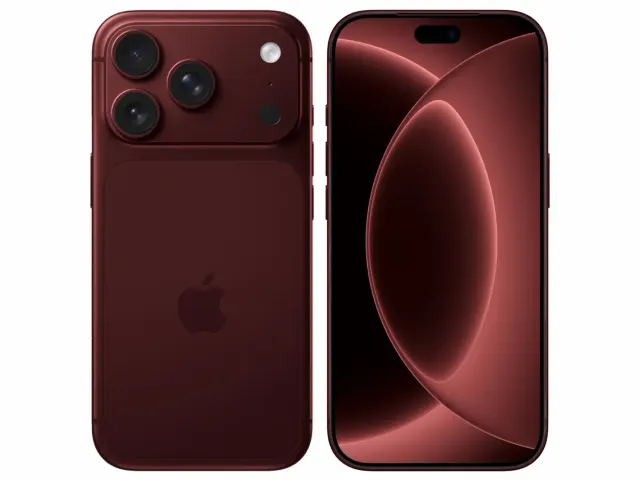
Apple iPhone 18 Pro
"The iPhone 18 Pro is now a confirmed $1,199 flagship with meaningful hardware changes, but launch specifications do not prove that those changes improve ownership enough to justify upgrading. Wait for independent battery, thermal, camera and C2 modem testing if your current phone still works well."
"Starts at $1,199 in the US"
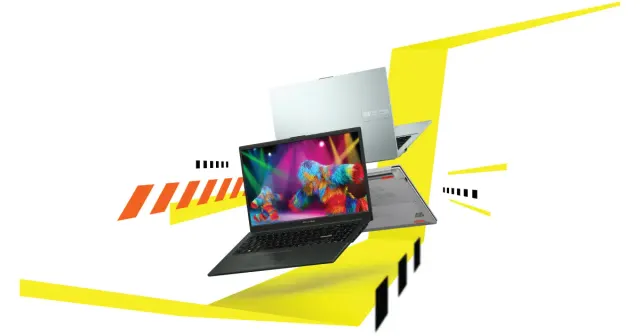
ASUS Vivobook Go 15 OLED Slim Laptop
"A budget-friendly 15.6-inch laptop crippled by non-expandable 8GB soldered memory, an outdated Zen 2 CPU architecture, dim 250-nit screen, and plastic chassis flex."
"8GB LPDDR5 RAM is permanently soldered to the motherboard (Zero upgrade slots)"
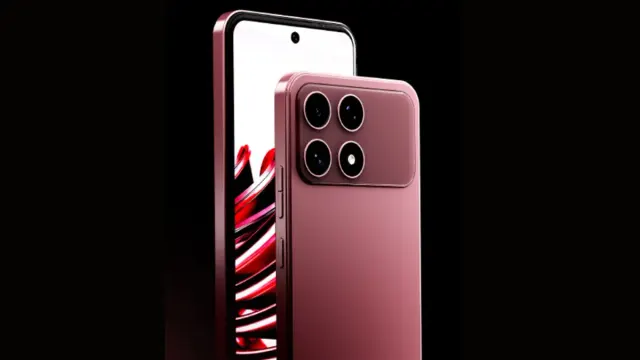
Boltt Ace 5G
"The Ace 5G offers a large battery, NFC and a clear update promise for its price, but the coarse display, 18W charging, heavy chassis and Boltt's unproven delivery record make waiting for independent tests the safer choice."
"6.79-inch display is only HD+"